
This walkthrough uses the dashboard for setup and curl or fetch for the request. You need a running Flagline deployment with Postgres, the seeded system presets, and an inference provider configured for actual decisions.
1. Open a workspace
Sign in and open Workspaces. A workspace that has a mapped Flagline tenant can be opened directly. If setup is incomplete, finish setup first. Creating a workspace makes you its owner.
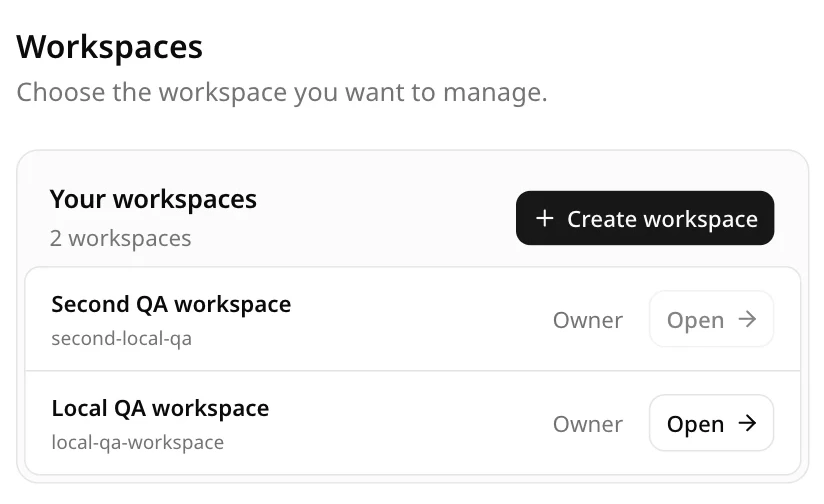
Once a workspace is open, its presets, keys, usage, and decisions are the only tenant data the dashboard reads.
2. Choose or create a preset
Open Presets. A system preset is a read-only starter template. Open it and fork it to change thresholds, examples, severity, or the default level. You can also create a team preset from scratch.
A new preset needs at least one category and a completed test before it can be created or published. See Presets and Preset editor.
3. Create an API key
Open API Keys and create a key. Owners and admins can manage keys; other members cannot.
- Name. A label such as
production. - Levels. The levels the key may request. A request outside this set is denied.
- Rate limit and concurrency. Per-key hard limits enforced through Redis.
- Daily spend ceiling. Optional. It limits committed charges in a UTC day, not provider cost from failed inference.
The secret is displayed once. Store it in a server-side secret manager, never in browser code.
4. Send a request
Create request.json:
{
  "input": "Thanks, this was helpful.",
  "preset_id": "PUT_A_SAVED_PRESET_UUID_HERE",
  "level": "standard"
}
Then call the endpoint:
curl "$FLAGLINE_BASE_URL/v1/moderations" \
  -H "Authorization: Bearer $FLAGLINE_API_KEY" \
  -H "Content-Type: application/json" \
  -H "Idempotency-Key: $(uuidgen)" \
  --data @request.json
The server-side fetch version has the same shape:
const response = await fetch(`${process.env.FLAGLINE_BASE_URL}/v1/moderations`, {
  method: "POST",
  headers: {
    Authorization: `Bearer ${process.env.FLAGLINE_API_KEY}`,
    "Content-Type": "application/json",
    "Idempotency-Key": crypto.randomUUID(),
  },
  body: JSON.stringify({
    input: "Thanks, this was helpful.",
    preset_id: process.env.FLAGLINE_PRESET_ID,
    level: "standard",
  }),
});

if (!response.ok) {
  throw new Error(`Flagline returned ${response.status}: ${await response.text()}`);
}

const result = await response.json();
console.log(result.decision, result.categories);
A completed decision looks like this:
{
  "id": "decision-receipt-uuid",
  "decision": "allow",
  "flagged": false,
  "categories": [{ "category_id": "harassment", "score": 0.08 }],
  "level": "standard",
  "model": "pinned-model-id",
  "escalated": false,
  "cached": false,
  "degraded": false
}Next steps
- Test drafts and publish versions in the preset editor.
- Try a message without writing code in the playground.
- Read the API reference for levels, inline presets, limits, and failure behavior.